Set up Companies House Lookup
Last updated
Before anyone can look a company up, D2K Companies House Lookup for Microsoft Dynamics 365 Business Central needs an API key. The key is free, it is yours rather than D2K's, and it is stored encrypted in your Business Central tenant.
You need the D2KL Admin permission set to change these settings.
Get a Companies House API key
- Go to https://developer.company-information.service.gov.uk/ and create an account.
- Create an application, then create a REST API key for it (not a streaming key).
- Copy the key.
The free key allows 600 requests every five minutes across your whole tenant. Companies House Lookup counts its own usage and stops before you are throttled - see Troubleshooting.
Enter the key
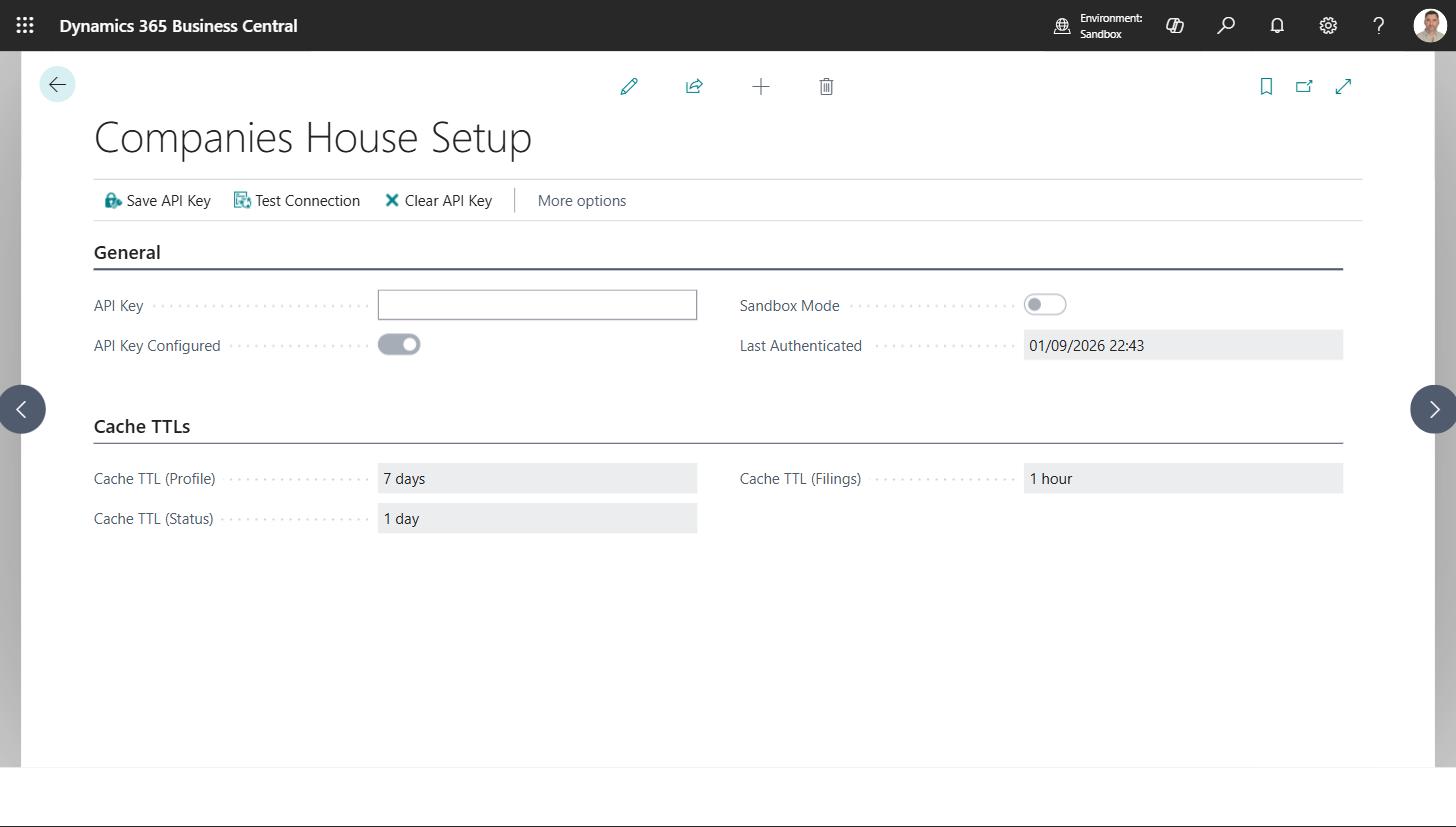
- Choose the search icon, enter Companies House Setup, and choose the related link.
- Paste the key into API Key.
- Choose Save API Key.
The key is checked against Companies House before it is saved. A key the register rejects is not stored, so you find out immediately rather than the first time somebody runs a lookup. If Companies House cannot be reached at that moment you are asked whether to save the key unverified and test it later with Test Connection.
Once saved, API Key Configured shows Yes and Last Authenticated shows when the key last worked. The key itself is never shown again and never appears in any table - use Clear API Key to remove it.
Use the assisted setup guide instead
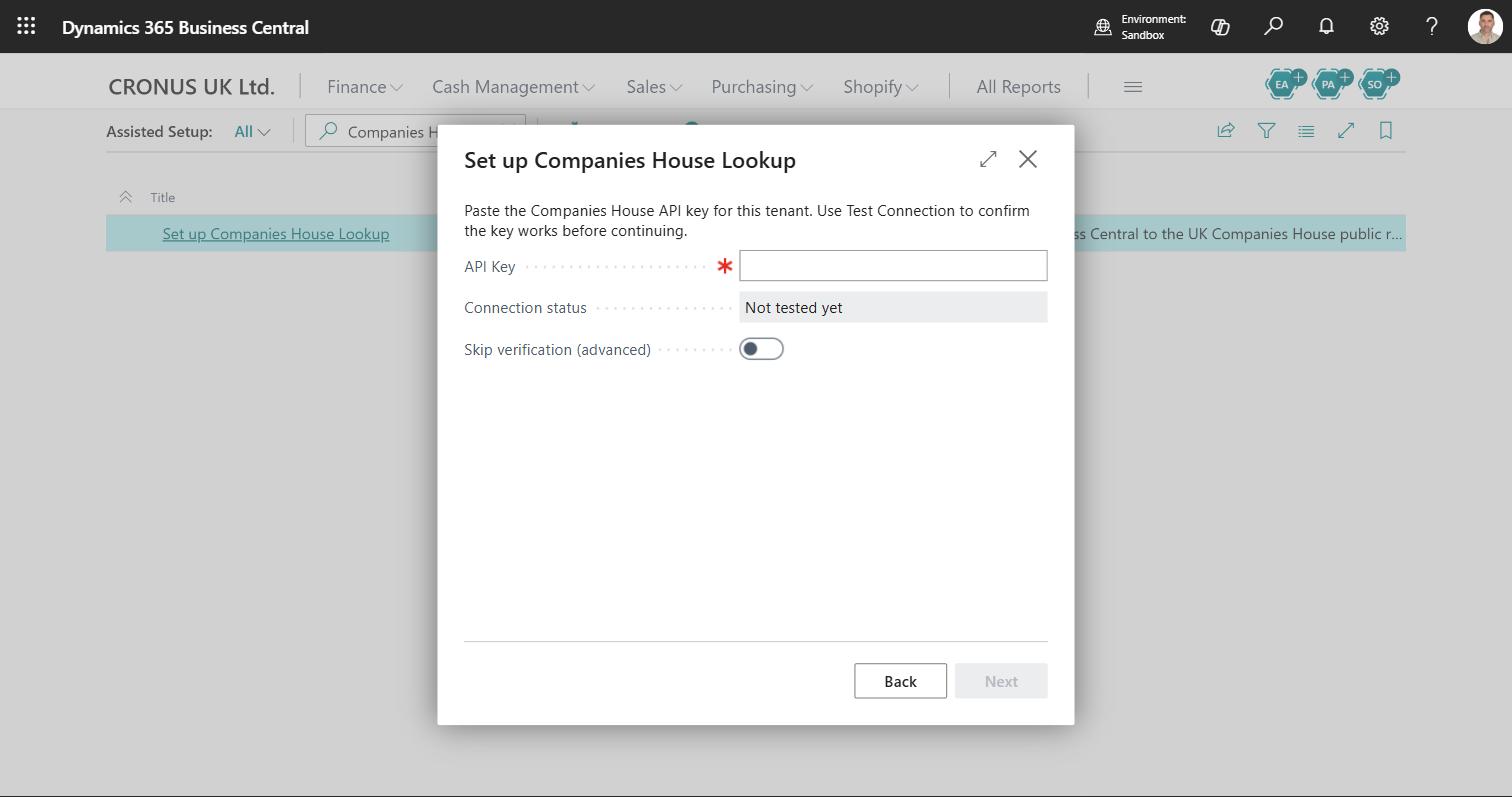
The assisted setup guide walks through the same steps: choose Set up Companies House Lookup from the Assisted Setup list.
| On the guide | Meaning |
|---|---|
| How to get a Companies House API key | Opens this article, for the steps under Get a Companies House API key |
| API Key | Paste the key here. It is masked on screen |
| Test Connection | Checks the key with Companies House. Next stays unavailable until it succeeds |
| Connection status | The result of the last Test Connection. It reads Not tested yet until you run it |
| Skip verification (advanced) | Lets you continue without a successful test. Use it only when Companies House cannot be reached from this environment, and run Test Connection on Companies House Setup later |
| Customer Template, Vendor Template | The same settings as on Companies House Setup. See Set the templates used for new records. You can leave them blank |
| Use Sandbox API | The same setting as Sandbox Mode on Companies House Setup. Leave it off unless you are testing the connection |
| API key entered, Connection verified | On the last step, a summary of what you did. The key itself is never shown |
Choosing Finish saves the key and switches on the retention policies for the call log and the recorded filings.
The guide does not ask how long data is cached. The defaults suit most companies, and you can change them on Companies House Setup.
Choose how long data is cached
Companies House Lookup keeps what it fetches so that opening the same company twice does not cost two calls. Three settings control how long it trusts what it has before fetching again.
| Setting | Default | What it controls |
|---|---|---|
| Cache TTL (Profile) | 7 days | The company name, status, address, type and SIC codes |
| Cache TTL (Status) | 1 day | How often a watched company's status is re-checked by the background poll |
| Cache TTL (Filings) | 1 hour | Filing history |
Shorter means fresher and more API calls; longer means fewer calls and older data. The defaults suit most companies, because registered details change rarely. You can always force a refresh on a single company - see Company snapshots.
Setting Cache TTL (Status) to zero stops the background poll from re-checking company status at all.
Set the templates used for new records
Customer Template and Vendor Template decide which template is applied when somebody creates a customer or vendor straight from a company number. The template supplies the trading defaults - posting groups, payment terms, and so on - while the name, registered address and registration number always come from the register. Leave them blank to create records without a template.
See Create a customer, vendor or contact from a company number.
Who needs a licence
Every user who looks a company up needs a licence for D2K Companies House Lookup, assigned in the Microsoft 365 admin centre. That includes the user the hourly background job runs as, which is whoever started the first filing watch. If that user's licence is removed, the background check stops. See Filing watches.
You do not need a licence for everyone. A user without one can still open customers, vendors and contacts and work as normal. They do not see the Companies House actions or the Companies House FactBox on those pages, and New from Companies House and Match to Companies House are not on their lists.
One place still shows the app to them: Set up Companies House Lookup stays in the Assisted Setup list, because that list is the same for every user. If a user without a licence chooses it, Business Central says their licence does not grant permission and the list stays open.
Do not give the Companies House role to a user without a licence. Business Central cannot open that role's home page for them, and they will see an error when they sign in until their role is changed.
A partner who signs in to your environment as a delegated administrator can set up and support the app without a licence.
Let Copilot answer questions about the app
Copilot in Business Central can answer questions about Companies House Lookup from this help. In Business Central version 28, an administrator must first open Copilot & agent capabilities and turn on Enable Bing Search, because Copilot finds this help through Bing. From version 29, Microsoft Copilot in Business Central replaces that chat, and its web search is not controlled by that setting.
Sandbox mode
Sandbox Mode sends lookups to the Companies House sandbox instead of the live register, so you can prove connectivity from a test environment without spending your live quota. The sandbox returns test companies, not real ones, and it does not serve filed documents - so leave it off unless you are specifically testing the connection.