Create a customer, vendor or contact from a company number
Last updated
If you know a company's registration number, you can create a customer, vendor or contact from it in one action, with the registered name, registered office address and number already filled in.
From the Customers or Vendors list
- Open the Customers or Vendors list.
- Choose New from Companies House.
- Enter the company registration number and choose OK.
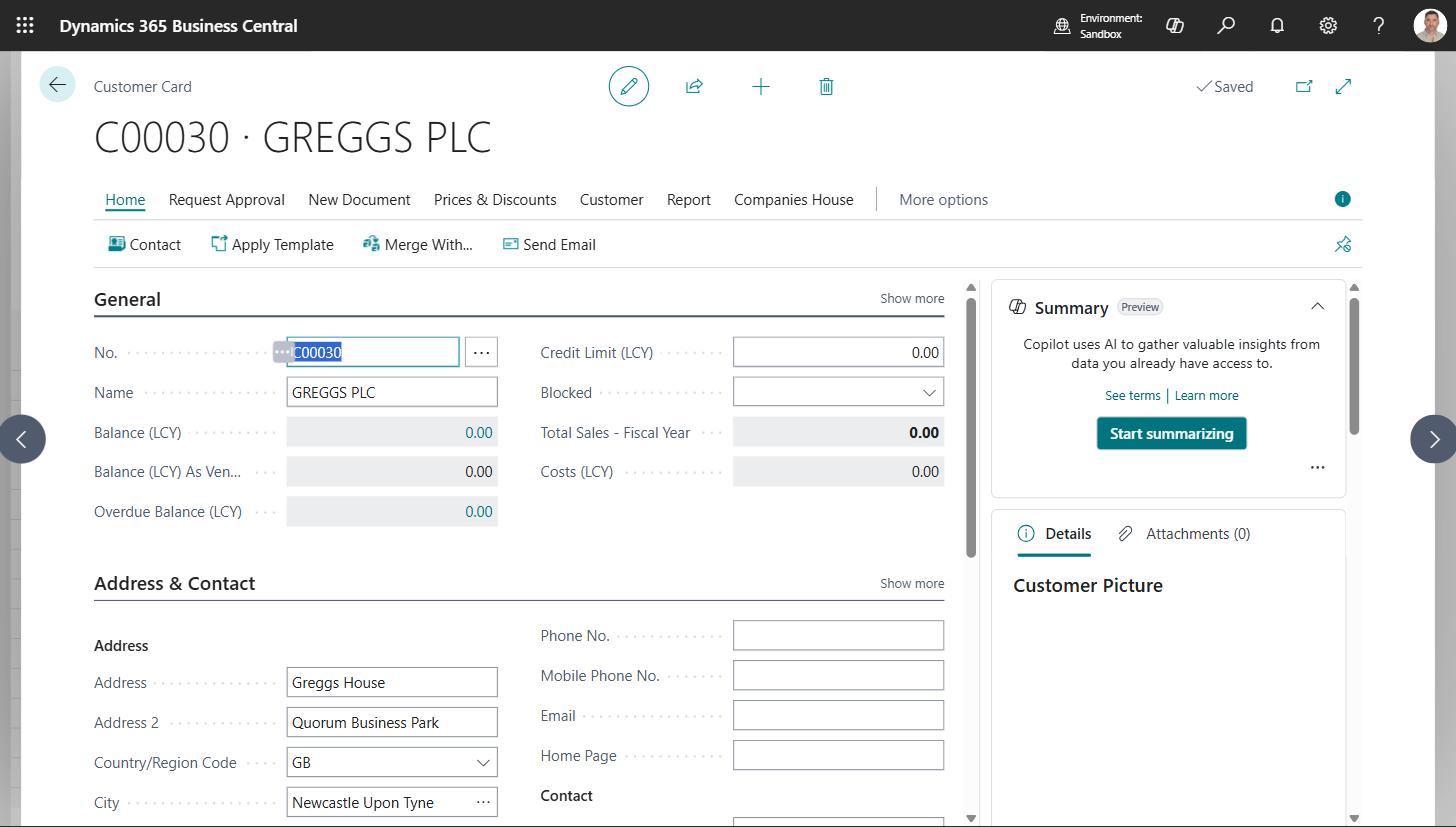
The finished card opens. The registered details come from Companies House and the trading defaults come from the template set on Companies House Setup - posting groups, payment terms, and whatever else that template carries.
If you type something that is not a registration number, the Companies House search opens on what you typed so you can find the company by name instead.
From a company you are already looking at
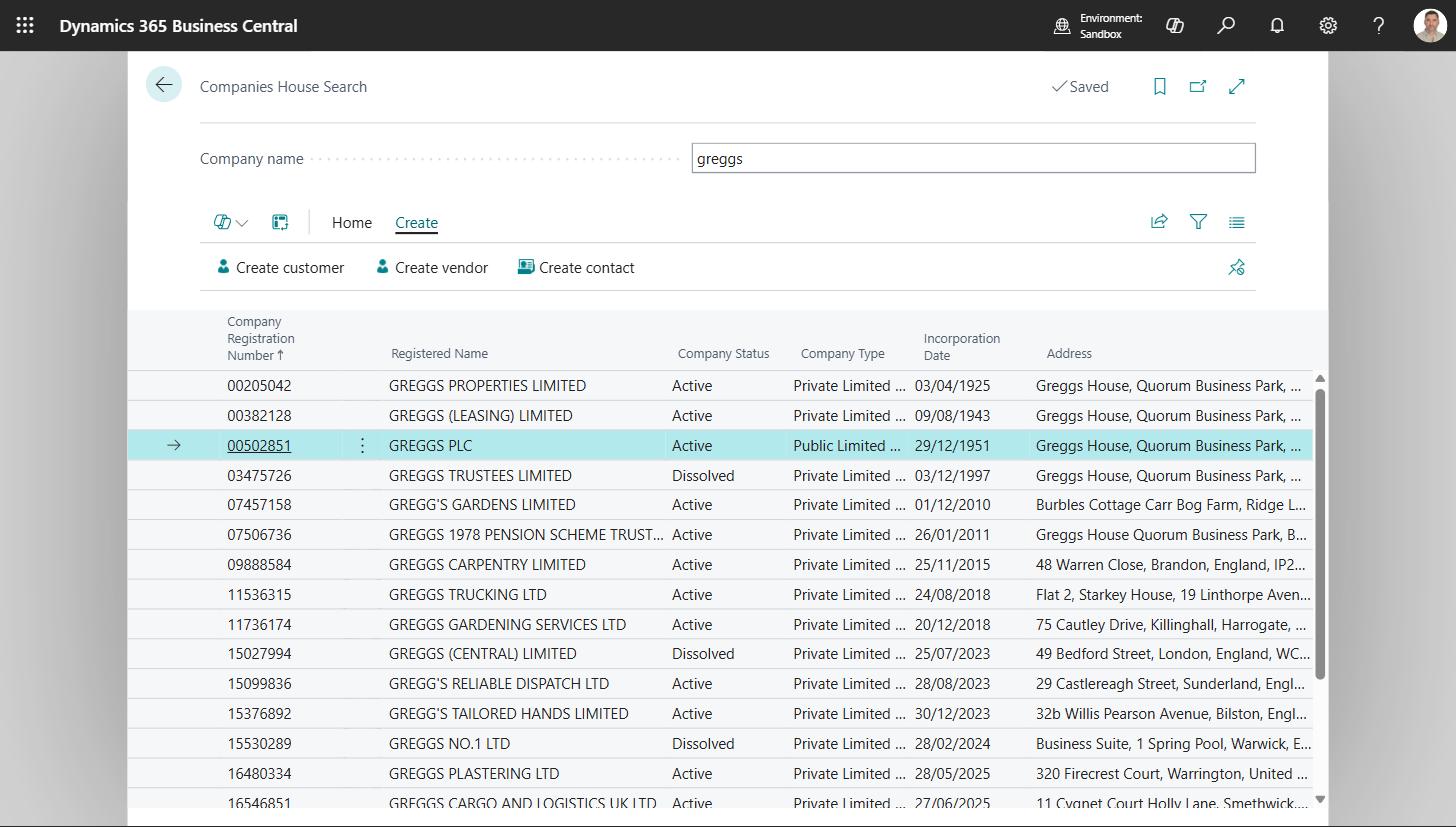
The Create actions on a company snapshot, and on a search result, do the same thing for the company in front of you:
- Create customer
- Create vendor
- Create contact - a company contact
Which template is used
| Record | Template |
|---|---|
| Customer | Customer Template Code on Companies House Setup |
| Vendor | Vendor Template Code on Companies House Setup |
| Contact | No template - contacts have none in Business Central |
The template is applied first, then the register's details on top, so the registered name, address and number always win over anything the template sets for those fields. Leave the template blank to create records without one.
If a record already exists for that company
You are warned, and told which record already carries that number, before a second one is created. Sometimes a second one is right - the same company can legitimately be two accounts - so it asks rather than refuses.
To link a record you already have rather than create a new one, use Fill from Companies House on that record instead. See Customers, vendors and contacts.
What gets filled in
| Field | Value |
|---|---|
| Name | The registered name |
| Name 2 | The trading name, if you have recorded one on the snapshot |
| Address, City, Post Code, County | The registered office address |
| Country/Region Code | From the register, where it maps to a Country/Region |
| Registration Number | The company registration number |
Everything else comes from the template or is left for you.